How To Screen Record On IPhone
How to Screen Record on iPhone: A Complete Guide
Screen recording on your iPhone is a built-in feature that lets you capture everything happening on your screen, whether it’s a game, a tutorial, a video call, or a demonstration for work. The best part is that you don’t need to download any third-party apps — the feature is already included in iOS. Below is a detailed explanation of how to set it up, start recording, customize options, and manage your recordings.
Step 1: Enable Screen Recording in Control Center
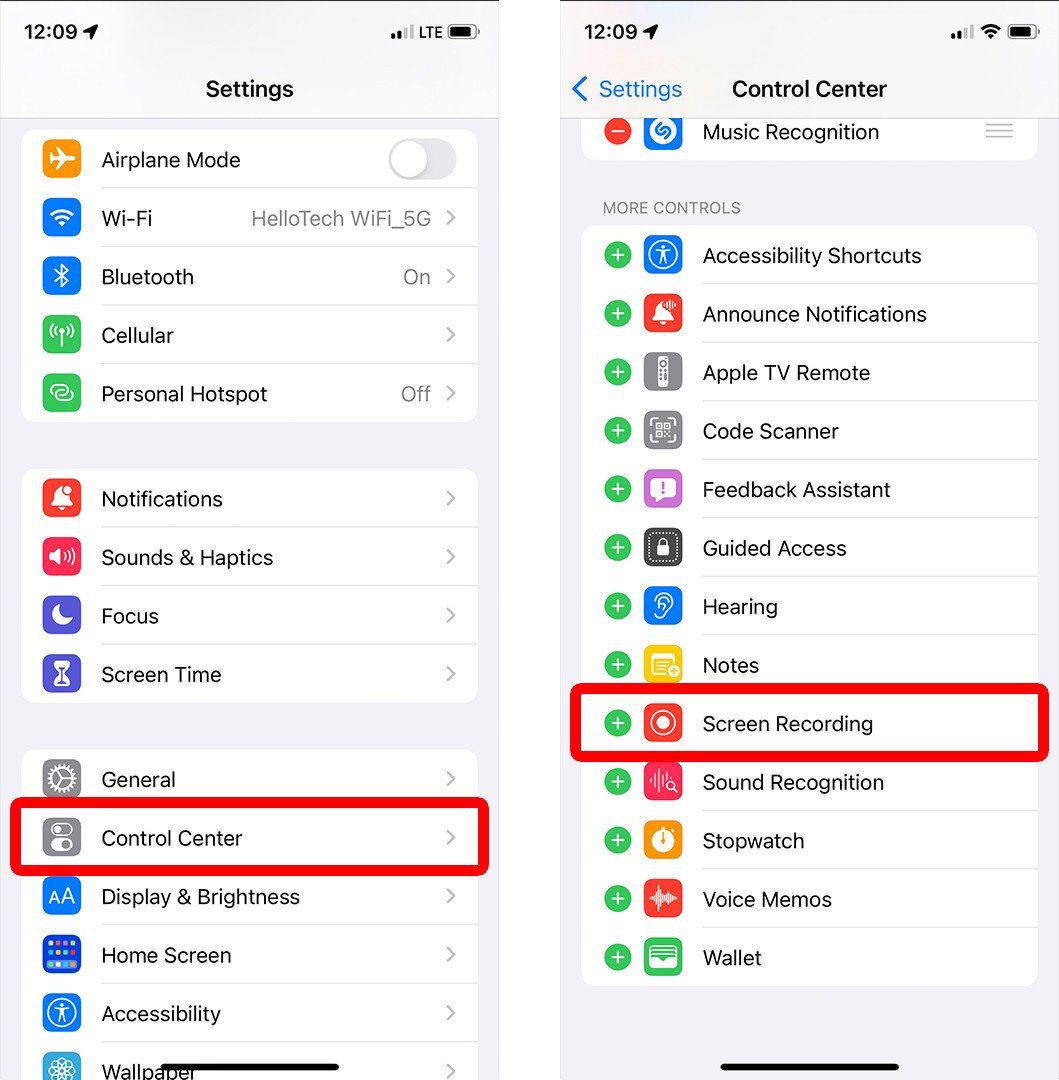
Before you can record, you must add the Screen Recording button to your Control Center. The Control Center is the quick settings menu that appears when you swipe down from the top-right corner of the screen on iPhone models with Face ID (or swipe up from the bottom on models with a Home button).
- Open the Settings app.
- Scroll down and tap Control Center.
- Under “More Controls,” look for Screen Recording.
- Tap the green plus (+) button next to it.
- Now, Screen Recording will appear in your Control Center.
Step 2: Start a Screen Recording
Once the option is added, recording is simple:
- Swipe down from the top-right corner (or up from the bottom if your iPhone has a Home button) to open the Control Center.
- Look for the Screen Recording icon — it looks like a solid circle within another circle.
- Tap the icon. A three-second countdown will appear at the top of your screen, giving you time to prepare.
- After the countdown, your iPhone will start recording the screen. A red bar or red pill-shaped indicator will show at the top of your screen (or around the clock in Dynamic Island models) to confirm that recording is active.
Step 3: Record With or Without Audio
By default, the screen recorder captures only the visuals. If you want to include sound — either from your iPhone’s system or through your microphone — follow these steps:
- In the Control Center, press and hold (long-press) the Screen Recording icon.
- A new menu will pop up with an option for Microphone Audio.
- Tap the microphone button to turn it on (it turns red when active).
- If enabled, your recording will capture both your voice and any background sounds.
- If disabled, only on-screen activities and system sounds will be recorded.
Step 4: Stop the Recording
When you are finished recording:
- Tap the red recording indicator at the top of your screen.
- A prompt will appear asking if you want to stop the recording.
- Tap Stop.
- Alternatively, you can go back to the Control Center and tap the Screen Recording icon again to end the session.
Once stopped, the video is automatically saved to the Photos app.
Step 5: Find and Edit Your Recording
- Open the Photos app.
- Go to the Recents album or the Screen Recordings album (if available).
- Tap your recording to play it back.
- You can edit the video directly in Photos — trimming unwanted sections, adjusting brightness, or adding filters. If you need advanced editing, export it to apps like iMovie, CapCut, or Final Cut Pro.
Extra Tips for Better Screen Recordings
- Storage Space: Make sure your iPhone has enough storage before recording long videos.
- Do Not Disturb Mode: Turn on Do Not Disturb to avoid notifications appearing in your recording.
- Orientation Lock: Use Portrait or Landscape orientation depending on your purpose.
Sharing: Once saved, you can share your screen recording directly via AirDrop, Messages, Mail, or social media apps.
If you did not understand how to do screen recording on iPhone, then watch this video
How To Record Your iPhone Screen