How to Delete Stickers on iPhone?
Apple’s Messages app allows users to enhance conversations with stickers, emoji packs, and fun add-ons. While stickers can make chats more lively, sometimes you may want to remove them—whether it’s because you placed a sticker by mistake, no longer want it on a message, or wish to uninstall an entire sticker pack. The process may vary slightly depending on your iOS version, but the methods are simple once you know where to look. Below are detailed steps for managing and deleting stickers on your iPhone.
1. Delete Stickers You Added in Messages
If you’ve accidentally placed a sticker on a message bubble, you can remove it easily without affecting the rest of the conversation. Stickers are layered on top of text bubbles, and while they don’t change the original message, they may look cluttered if you add too many. Here’s how to delete them: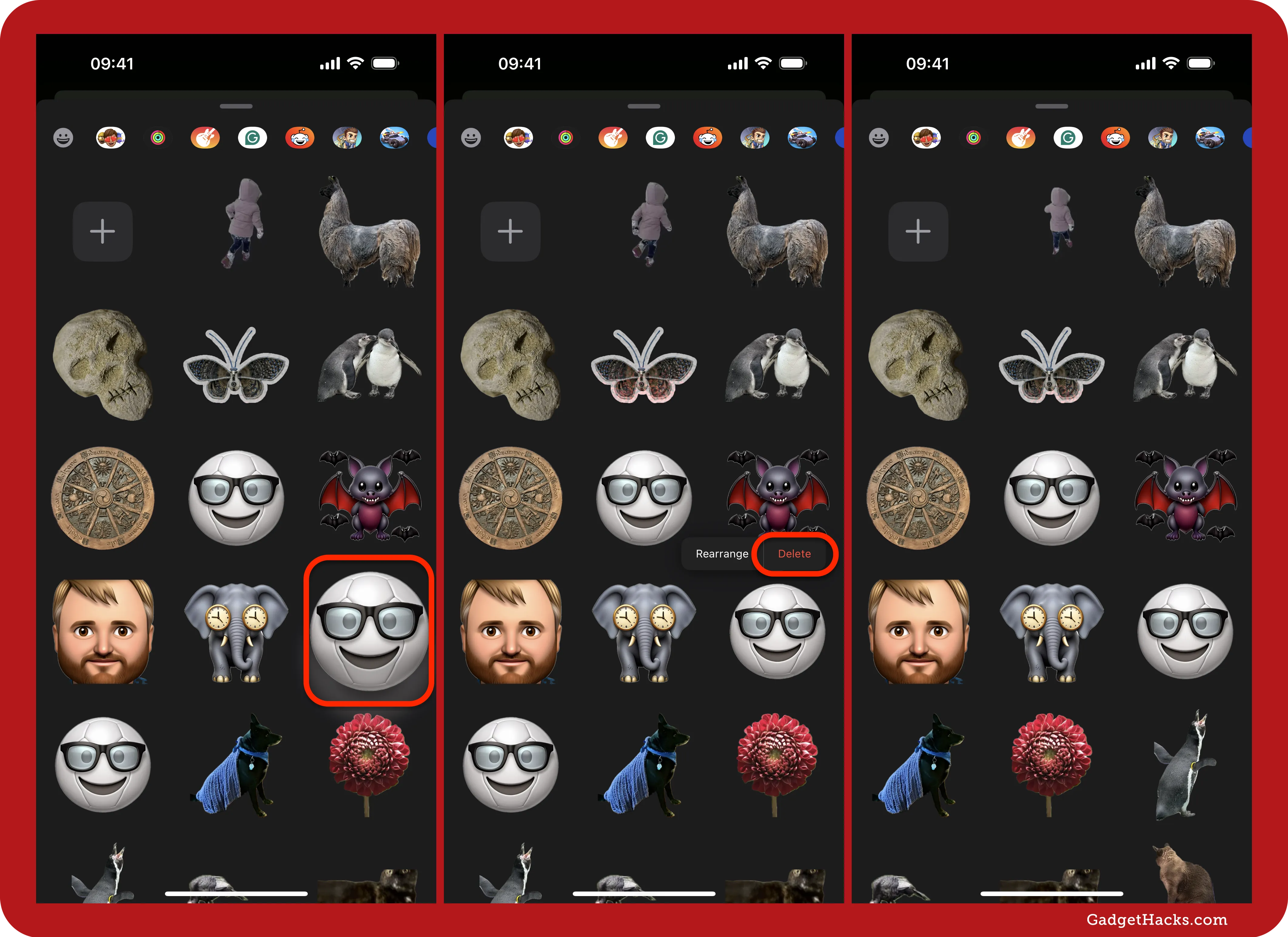
-
Open the Messages app.
-
Go to the conversation where you placed the sticker.
-
Locate the specific message bubble with the sticker attached.
-
Press and hold the sticker until a menu appears.
-
Tap Sticker Details (in some iOS versions, this may appear as “More”).
-
You will see the sticker listed. Swipe left on it and tap Delete.
This will remove only the sticker, leaving your original text message untouched. It’s a helpful option if you want to clean up a chat without deleting your actual conversation history.
2. Remove Sticker Packs or iMessage Apps
Sometimes you might not want just a single sticker gone—you may want to get rid of an entire sticker pack that you no longer use. These packs are installed either through the App Store or from third-party apps that integrate with Messages. To remove them:
-
Open the Messages app.
-
Open any conversation so you can access the iMessage apps drawer.
-
Tap the “+” (plus) button next to the text field.
-
Scroll to the iMessage apps list and tap Manage or Edit, depending on your iOS version.
-
Find the sticker pack you want to remove and simply toggle it off.
This hides the sticker pack from appearing in your Messages drawer. The app is still installed on your phone, but it won’t clutter your messaging options anymore.
3. Completely Delete Sticker Apps from iPhone
If you want to remove a sticker pack or emoji app entirely from your device, you can delete it the same way you would delete any other app.
-
Go to Settings > General > iPhone Storage.
-
Scroll through the list until you find the sticker pack or app.
-
Tap it, then select Delete App.
This completely removes the sticker pack from your iPhone, freeing up storage space and ensuring it won’t show up in Messages again.
Final Thoughts
Stickers are a fun way to express yourself, but they don’t always have to stay. Whether you want to delete a misplaced sticker from a conversation, hide a pack you rarely use, or uninstall them altogether, Apple provides easy options. By following the steps above, you can keep your Messages app organized and tailored to your preferences—only keeping the stickers that truly add value to your chats.